



Vincispin App
Vincispin is more than a casino you can visit in a regular browser. Our platform also has a mobile form — the Vincispin app — created for players who prefer to keep their favorite casino close at hand. It offers another way to experience Vinci Spin while remaining part of the same familiar platform.



Benefits and Features of the Vinci Spin App
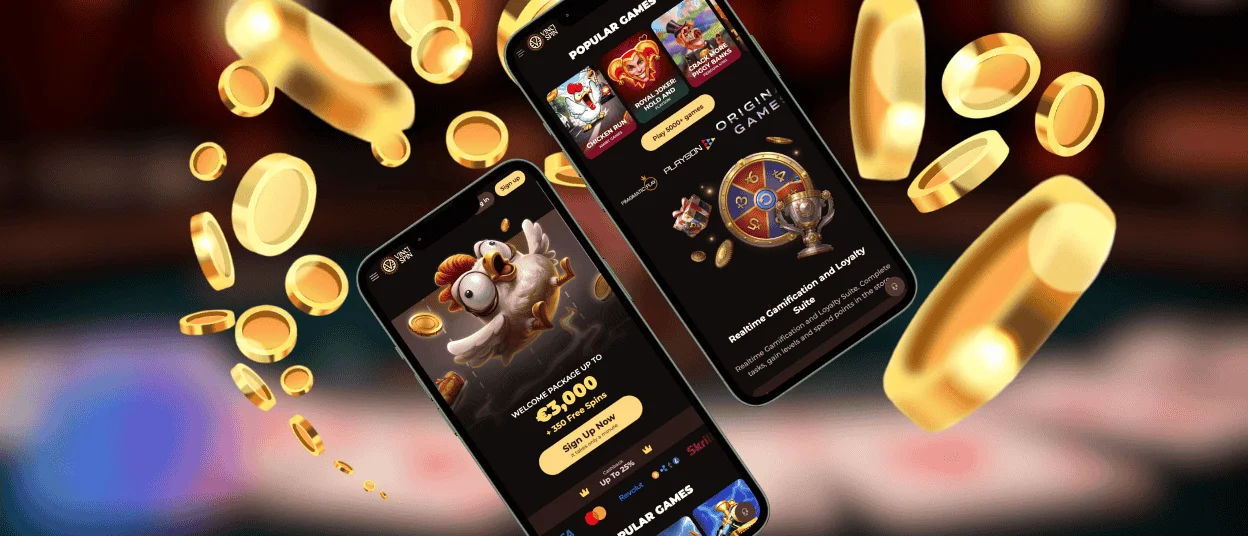
We use progressive web app technology for the Vincispin app. The application runs through the browser but uses its own mobile interface rather than displaying Vincispin as a standard browser tab.
The differences become most visible in the way the app uses screen space.
| Feature | How it works | Player benefit |
| Reduced browser interface | The app removes elements such as the address bar and browser tabs from the main view. | More of the mobile screen remains available for the interface. |
| Fixed navigation bar | We keep Menu, Casino, Bonuses, Activities, and Search in a fixed bar on most pages. | You can move to these sections without returning to the homepage first. |
| Game-page view | The fixed navigation bar does not appear on individual game pages. | The game uses the screen area that the navigation bar would otherwise occupy. |
| Low local footprint | The PWA relies on web resources instead of storing a full native application on the device. | The app requires very little local storage compared with a conventional native app. |
These changes distinguish the PWA interface from opening Vincispin in an ordinary mobile browser tab.
Vincispin App for iOS
You can add Vinci Spin to the home screen of an iOS device through Safari. Apple provides this function through the browser’s Share menu.
To add the app:
- Open the Vincispin website in Safari.
- Tap the Share button, shown as a square with an upward arrow.
- Select “Add to Home Screen.”
- Choose the name for the icon if you want to change it, then tap “Add.”
Safari places the icon on the home screen after you confirm the action. You can then move it to another position in the same way as other home screen icons.
The icon works as the entry point for the PWA on iOS. You launch it from the home screen rather than finding Vincispin among your Safari tabs.
Vincispin Casino App for Android
Android also lets you add Vincispin directly from a mobile browser. We recommend Chrome for this process, although other Android browsers may provide a similar home-screen function.
In Chrome:
- Open Vincispin.
- Tap the three-dot More menu in the address bar.
- Select “Add to home screen.”
- Tap “Add” to confirm.
Android creates the icon after confirmation. If you want to change its position, touch and hold the icon, drag it to the required place on the home screen, and release it.
Vincispin APK
There is no official Vincispin APK. We chose a progressive web app instead of distributing Vincispin as a native Android package, so Android users do not need an APK file to use the app.
This also means that you should not search third-party websites for an Android installation package carrying our name. Vinci Spin does not require you to download an external file or enable installation from unknown sources. The browser-based installation method described above is the route we use for Android devices.
Install Vincispin Casino on Mac or Windows
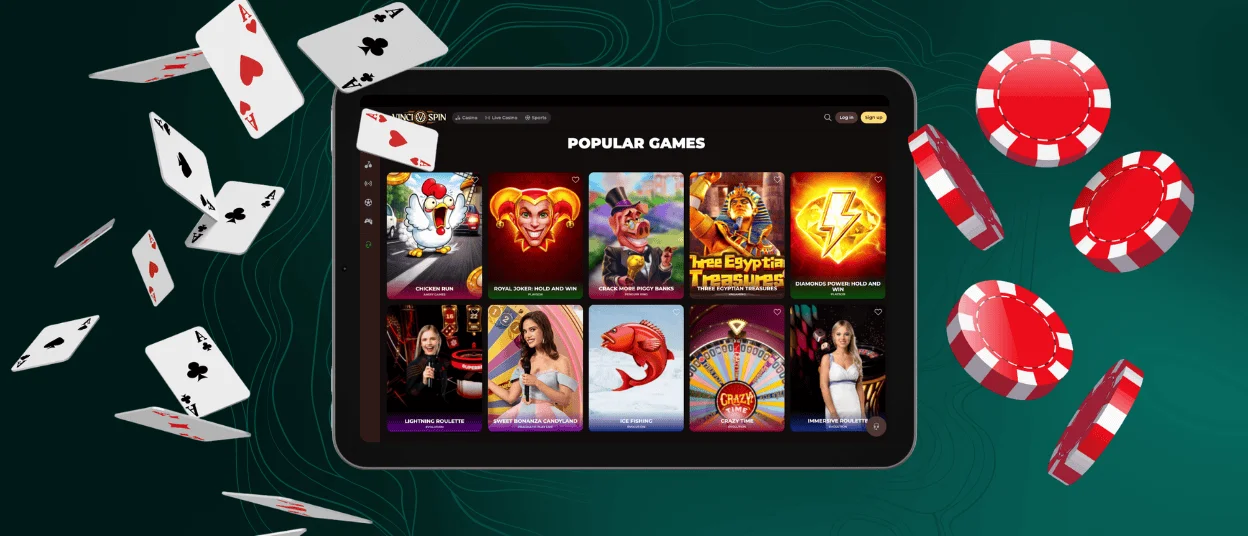
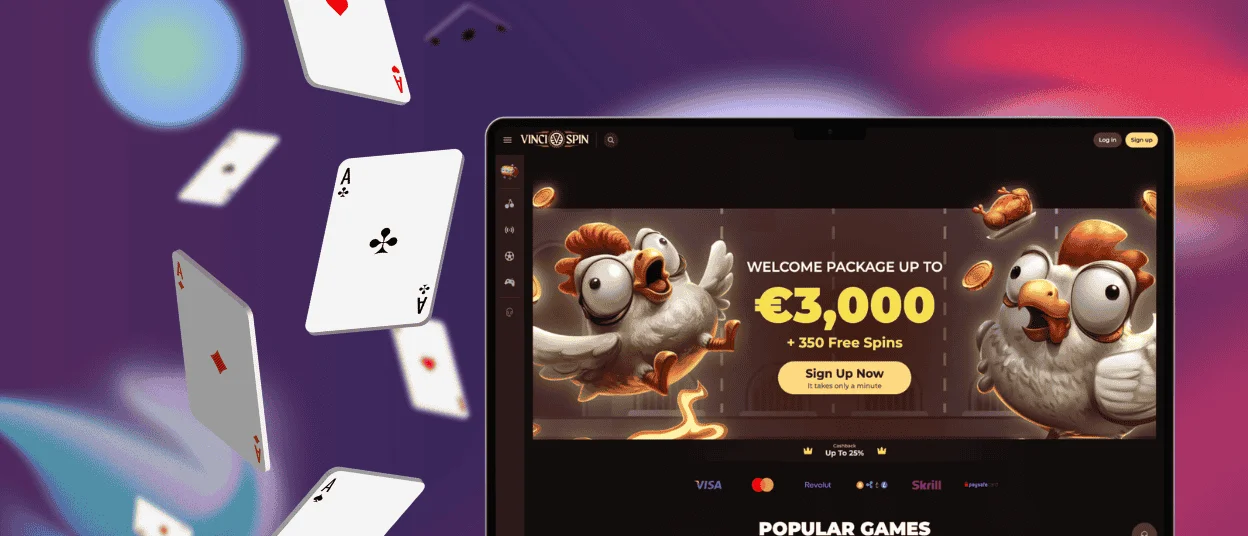
You can add Vincispin to a Mac or Windows computer through a compatible browser. Depending on the browser, the menu may show an option such as “Install app,” “Create shortcut,” or a similar command.
After installation, Vinci Spin can appear in different parts of the system:
- Desktop — as a separate shortcut.
- Windows taskbar or macOS Dock — Vincispin can stay there as a pinned icon.
- Applications menu — some browser and OS combinations also add the PWA to the system app list.
PWA Security Advantages
The PWA format keeps Vincispin inside the browser environment rather than installing a native program with broader system access. This changes several parts of the security model.
- Limited device access. A PWA does not get unrestricted access to your device. Features such as the camera, contacts, or local storage remain behind browser permissions.
- No app file to download. Vinci Spin does not require an installer or other application package. This eliminates the malware risk associated specifically with downloading a compromised app file.
- HTTPS connection. The PWA runs over HTTPS, which encrypts data while it travels between the browser and the website. Overall protection also depends on the platform’s backend infrastructure, encryption standards, and account-security measures.
- Automatic security updates. We update the web version centrally. When you open the PWA, it loads the current web resources, so you do not need to install a new application build after a security update.
You still control the security of your own access. Keep your browser updated, protect your login credentials, and create the Vincispin shortcut only from the official website.
FAQ
Can I use my existing Vincispin account in the app?
Yes. You use your regular credentials when you access the PWA. Adding the app does not create another player account or require a second registration.
What happens if I remove the icon?
Removing the icon deletes the shortcut from that device. It does not delete your account or change the information associated with it.
Does Vinci Spin remain available in a regular browser after I add the app?
Yes. Adding the PWA does not disable standard web access. You can continue opening Vincispin through the browser whenever you prefer.
Does the browser keep any PWA data on my device?
A browser may store cached website resources and other web data according to its own settings. You can review or clear this data through the browser’s site-data controls.
Can I add the app to more than one device?
Yes. The shortcut belongs to the device rather than to the player account. You can therefore add the PWA separately on devices where you want a Vinci Spin icon.


